5-minute quickstart
Register an organization, connect your first cloud account, and watch real inventory appear in Cloud Control — an end-to-end quickstart in about five minutes.
This quickstart takes you from nothing to real cross-cloud inventory. It assumes you can create a read-only IAM role in an AWS account (or workload identity federation in a GCP project).
- Register your organization
Go to
/registerand provide an organization name, your name, a work email and a password (at least 8 characters). You become the organization's Owner and are signed straight in. Your organization starts with an empty console until you connect a cloud account. - Open Cloud accounts
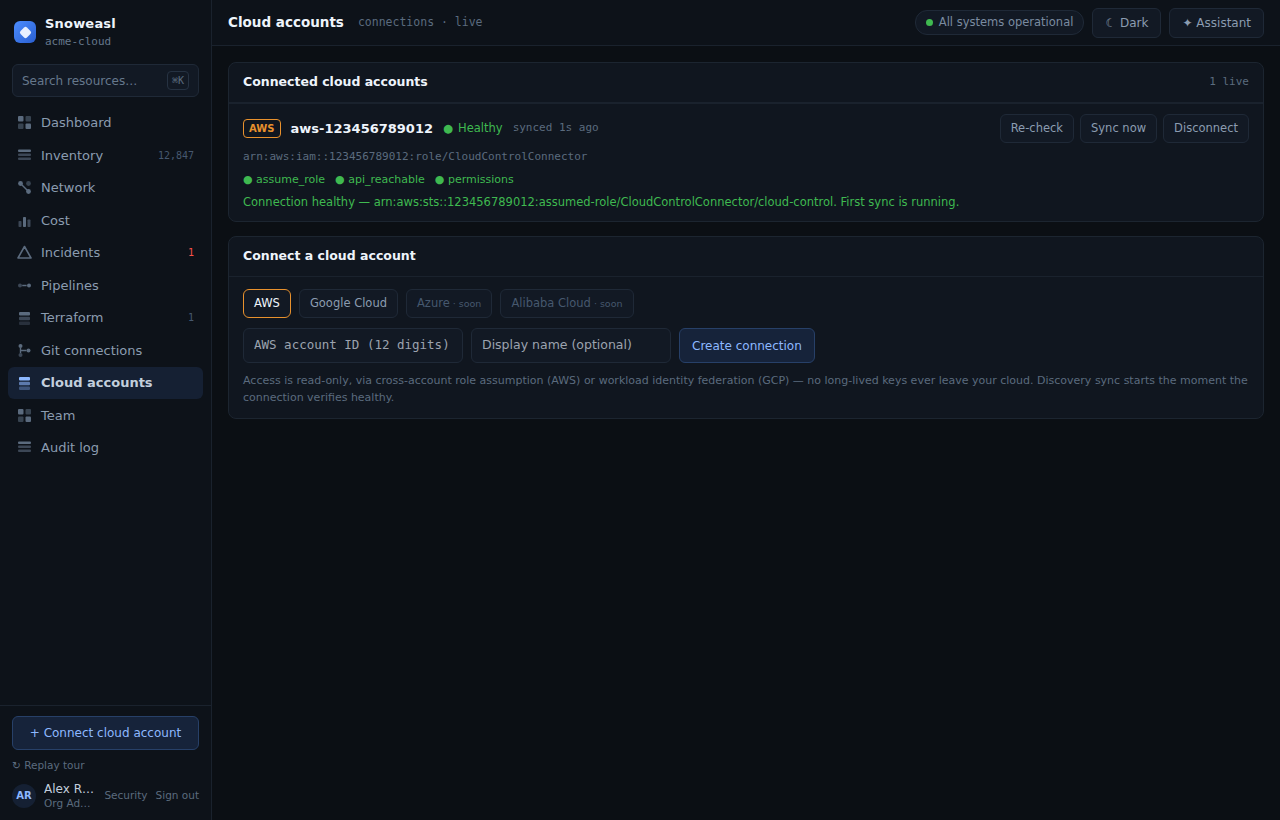
In the sidebar, open Cloud accounts (
/clouds). This is where connections live. As the Owner you have themanage_cloud_accountscapability, so you can add one. - Add a connection
Choose a provider. For AWS, Cloud Control gives you a CloudFormation quick-create link that provisions a cross-account IAM role with an
ExternalId— no long-lived keys. For GCP, it gives you agcloudscript that sets up workload identity federation. For Azure, it gives you anazscript that registers an Entra app + service principal with a federated credential (no client secret) and grants it read-only Reader (+ Cost Management Reader). For Alibaba Cloud, it gives you analiyun ramscript that creates a RAM OIDC provider trusting Cloud Control's issuer and a RAM role (ReadOnlyAccess + AliyunBSSReadOnlyAccess) assumable via STSAssumeRoleWithOIDC— no AccessKey/Secret. Follow Connect an AWS account or Connect a GCP account for the details. - Verify the connection
Click Verify connection. Cloud Control assumes the role, runs health checks, and reports
healthy— or tells you the exact missing permission if a check fails. - Watch the cutover happen
The first time a connection turns healthy, your organization cuts over from the empty state to real data. A first sync kicks off within seconds, and inventory, topology and the dashboard begin showing your actual resources with a 'last synced' freshness marker.
- Explore
Open Inventory to search your resources, Network to see topology, and — once billing has been ingested — Cost for FOCUS-normalized spend. Invite teammates from Team and give them appropriate roles.
Cloud Control's cloud access is read-only. Connecting an account never lets it change your infrastructure; it discovers and reports. Disconnecting stops sync and marks the discovered rows as disconnected — it never deletes anything in your cloud.
Next steps
- Enable MFA on your account to protect the Owner login.
- Set up single sign-on so your team logs in with your identity provider.
- Create a budget and catch a cost anomaly.
- Generate an API token and query resources with curl.