Enable MFA on your account
A short tutorial to turn on TOTP multi-factor authentication in Cloud Control, confirm a code, save your one-time recovery codes, and sign in with MFA afterwards.
This tutorial enables TOTP multi-factor authentication on your account — a good idea for anyone, and required before you can be made an organization owner.
- Start setup
In your account settings (or via
POST /api/auth/mfa/setup), start MFA. You receive a secret and anotpauth://URL. - Add it to your authenticator
Scan the QR code or paste the secret into an authenticator app (any RFC 6238 TOTP app works).
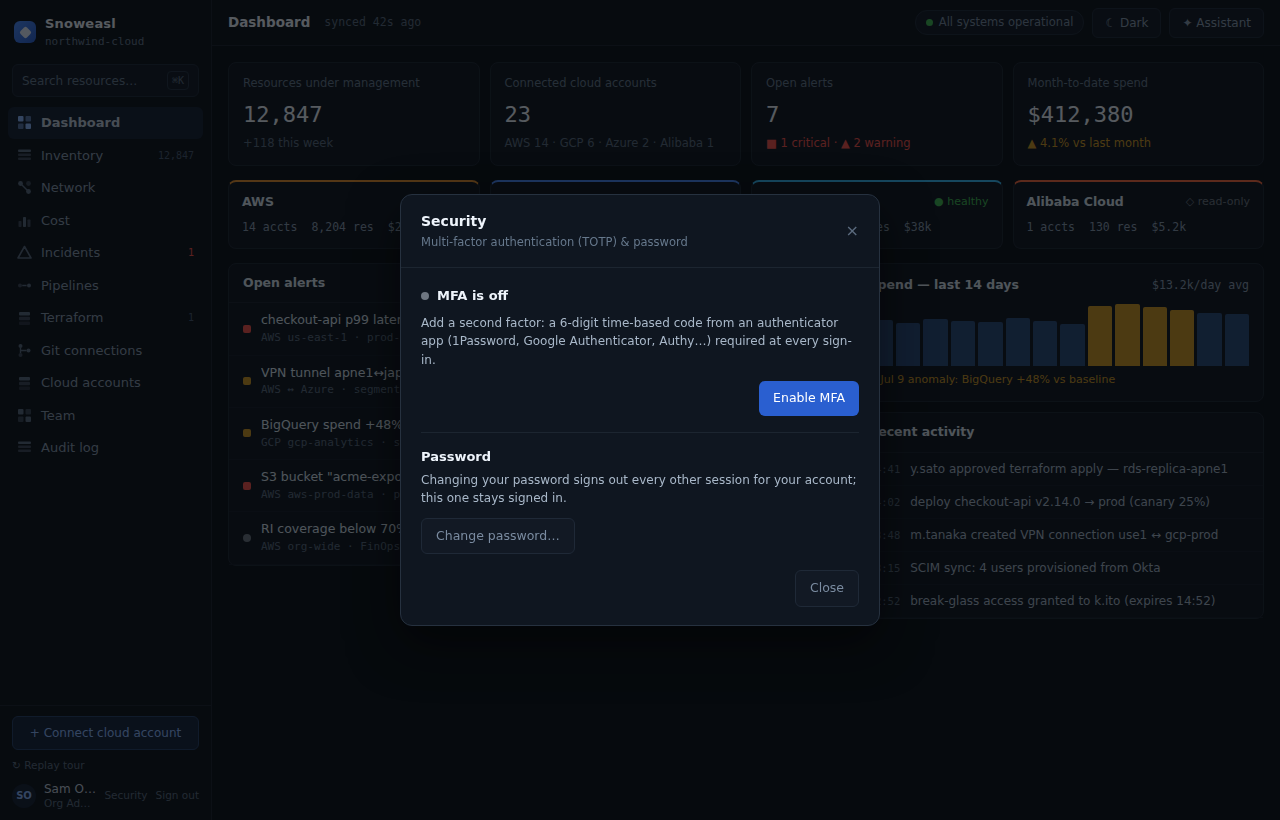
- Confirm a code
Enter the current 6-digit code to enable MFA (
POST /api/auth/mfa/enable). A wrong code is rejected without enabling anything. - Save your recovery codes
You are shown eight single-use recovery codes exactly once. Store them somewhere safe — each signs you in once if you lose your device.
- Sign in with MFA next time
From now on, after your password you are asked for a code. Login returns a single-use challenge token that you exchange for a session at
POST /api/auth/mfa/verify.
TOTP depends on an accurate clock. If codes are rejected, check your device's time sync, or use a recovery code. Five wrong codes lock verification for 15 minutes.