Connecting an AWS account
Connect an AWS account to Cloud Control with a cross-account IAM role and ExternalId via CloudFormation — no long-lived keys — plus health checks and disconnect semantics.
Connecting AWS is real in Cloud Control. Access is read-only and uses a cross-account IAM role assumed with STS — there are no long-lived access keys to create, store or rotate.
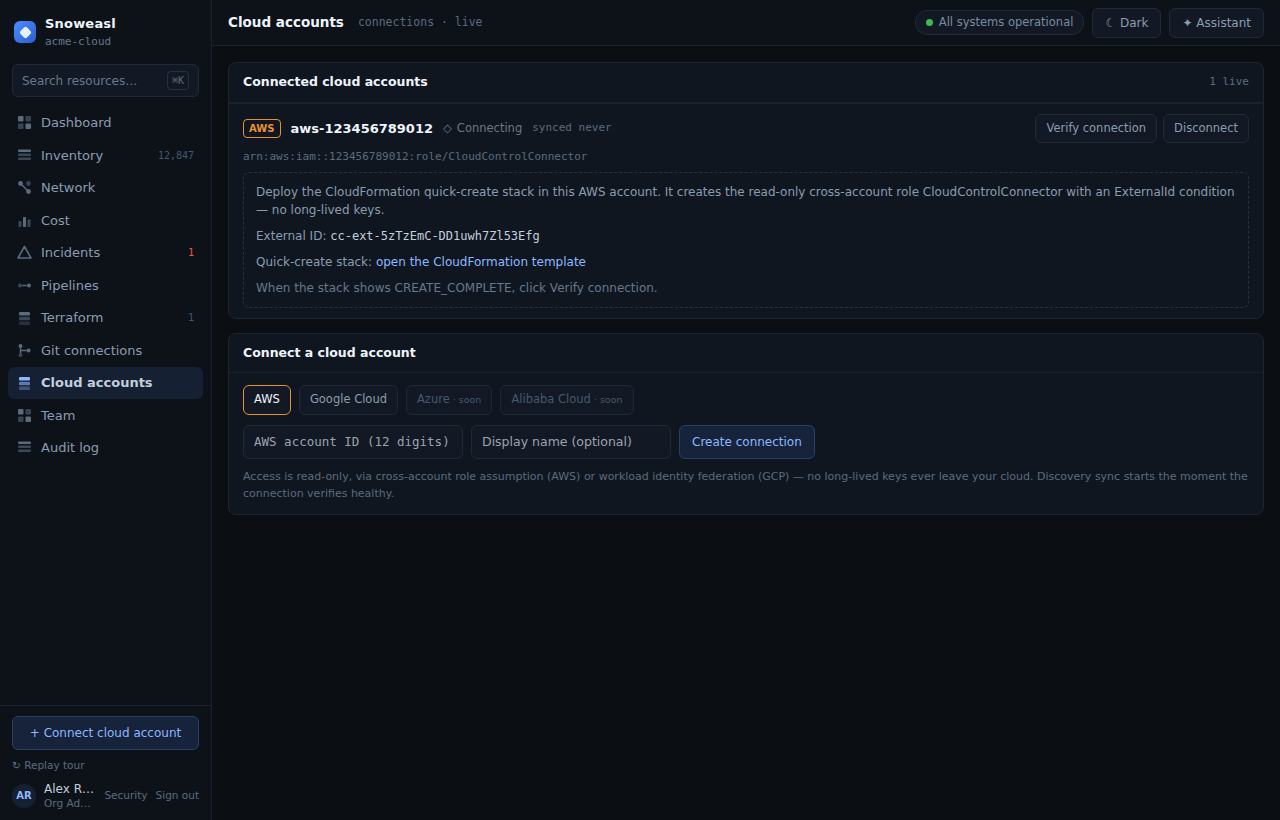
How the trust works
You create an IAM role in your AWS account that trusts Cloud Control's AWS account, scoped by an `ExternalId` unique to your connection (the confused-deputy defense). Cloud Control assumes that role with STS and makes SigV4-signed, read-only calls to discover inventory. It never holds your credentials — only the ability to assume a role you control and can revoke at any time.
Connect
- Start a connection
On Cloud accounts (
/clouds), choose AWS. This creates the connection record and gives you the trust details (Cloud Control's account id and yourExternalId). - Create the role
Use the provided CloudFormation quick-create link to provision the read-only role with the correct trust policy and
ExternalIdin one click, or create it manually from the shown policy. - Verify
Click Verify connection (`POST /api/cloud/accounts/{id}/validate`). Cloud Control assumes the role and runs health checks. On success the status becomes
healthy, the empty-to-real cutover fires, and a first sync starts within seconds.
Health checks and missing permissions
Verification runs concrete checks and reports each one. If a permission is missing, the response carries the exact missing permissions (a 409 with a missing array) so you can fix the policy precisely — nothing is partially synced for an unhealthy account. A transient provider error surfaces as a 503 you can retry.
| Status | Meaning |
|---|---|
connecting | Created, not yet verified healthy. |
healthy | Checks pass; syncing. |
warning | Recoverable issue (for example an expiring/limited condition); last known-good inventory is still served. |
error | A check failed; fix and re-verify. |
disconnected | You disconnected it; sync stopped, rows retained. |
Advanced connection parameters
Everything a real connection needs is captured on the connect form — open Advanced / real connection under the connect card to set them. All are optional with sensible defaults shown inline; they are stored in the connection's encrypted payload and drive the real adapter.
| Parameter | Default | Notes |
|---|---|---|
| Role ARN or role name | CloudControlConnector | Paste a full role ARN, or just a role name/path — a name is expanded against your account id. A malformed ARN is rejected with a 400. |
| Regions | all opted-in regions (auto-discovered) | A comma-separated list of regions to discover. When set, the adapter scans exactly these regions instead of calling ec2:DescribeRegions. |
Platform trust settings
The connect instructions render the real platform AWS account id your role must trust — resolved from a stored platform trust setting, then the CC_AWS_ACCOUNT_ID environment variable, then a clearly-labelled placeholder. Any operator who can manage cloud accounts sees the resolved value and its source inline; a platform admin can set it from the Configure platform trust settings panel (GET/PUT /api/cloud/settings). Once set, every connection's CloudFormation link and instructions show the real account id instead of the placeholder — onboarding never depends on an unseen deployment variable.
Duplicate detection and disconnect
Connecting an AWS account that is already connected returns a 409 with the existing connection's id. To disconnect, `DELETE /api/cloud/accounts/{id}` marks the connection disconnected and its discovered rows account_disconnected — nothing is purged. Cloud Control's access was read-only, so the reminder is to delete the IAM role in your AWS account to fully de-provision.
Once healthy, follow Connect AWS and explore your inventory for the end-to-end walkthrough.