Connect AWS and explore your inventory
An end-to-end tutorial: connect an AWS account to Cloud Control with a cross-account role, watch the empty-to-real cutover, and explore your synced inventory and topology.
In this tutorial you connect a real AWS account and watch Cloud Control cut over from the empty state to your own inventory. You need an AWS account where you can create an IAM role, and a Cloud Control account with the manage_cloud_accounts capability (Owner, Org Admin or SRE · Cloud Admin).
- Open Cloud accounts
Sign in and open Cloud accounts (
/clouds). Choose AWS to begin a new connection. Cloud Control shows the trust details: its own AWS account id and a uniqueExternalIdfor this connection.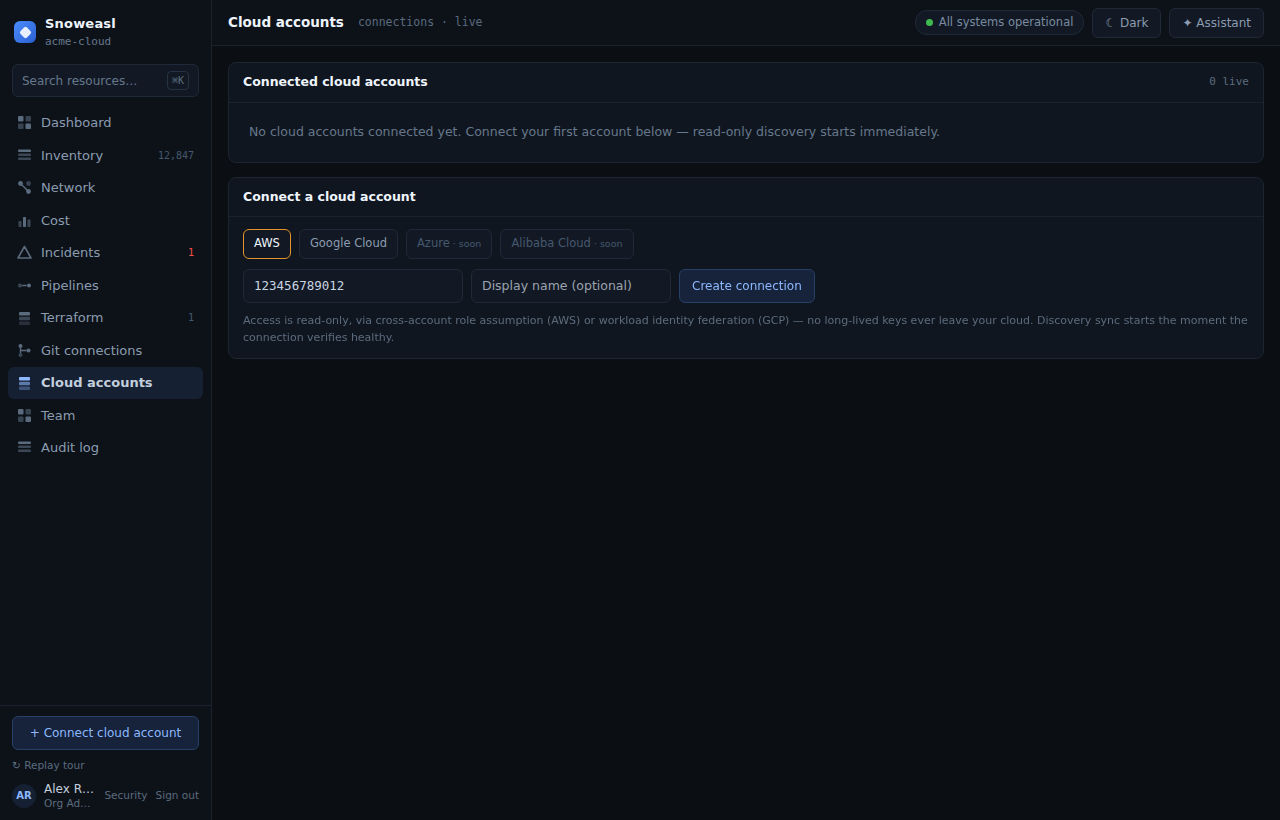
- Set the connection parameters (optional)
Open Advanced / real connection to set the role ARN or role name and the regions to discover — everything a real connection needs lives on this form. The connect card also shows the resolved platform AWS account id your role must trust; a platform admin can set the real value under Configure platform trust settings so the instructions render it instead of the placeholder.
- Create the read-only role
Click the CloudFormation quick-create link. It opens CloudFormation pre-filled to create an IAM role that trusts Cloud Control's account, scoped by your
ExternalId, with a read-only policy. Create the stack.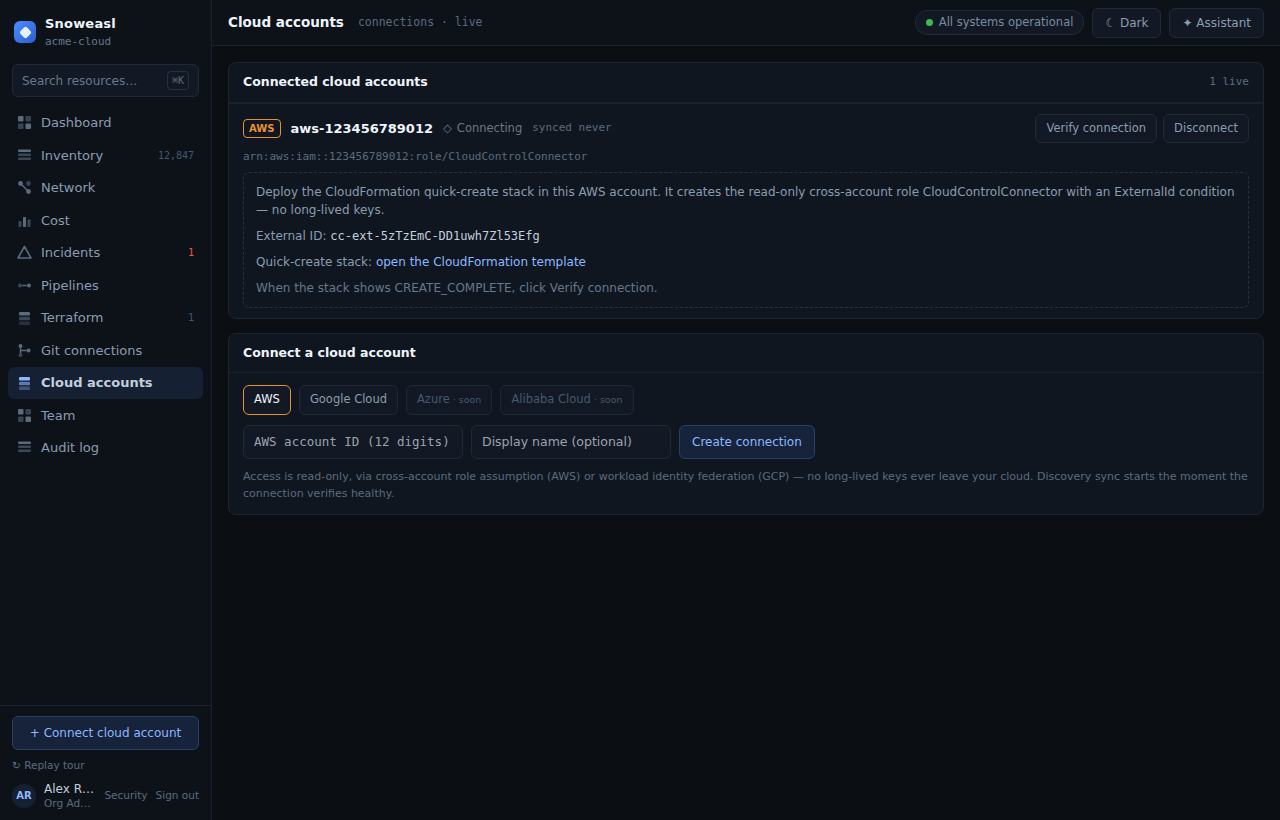
- Verify the connection
Back in Cloud Control, click Verify connection. It assumes the role and runs health checks. If a permission is missing, the error names it exactly — add it and verify again. On success the status turns
healthy.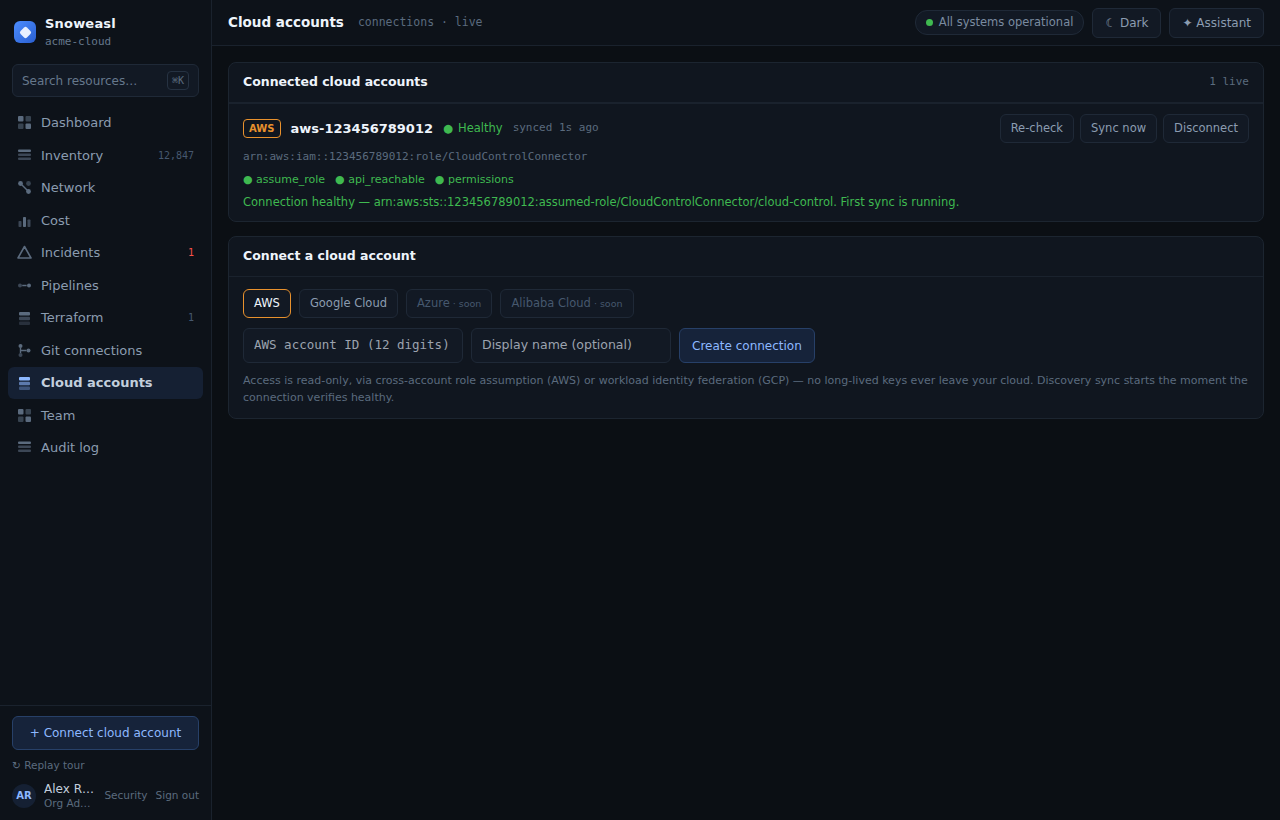
- Watch the cutover
Because this is your first healthy connection, your organization cuts over to real data and a first sync starts within seconds. Watch the dashboard and inventory pick up a 'last synced' marker.
- Explore inventory
Open Inventory (
/inventory). Search and filter by cloud, type and region. Each resource shows its native id, region, status and tags. Open one to see provider-specific detail.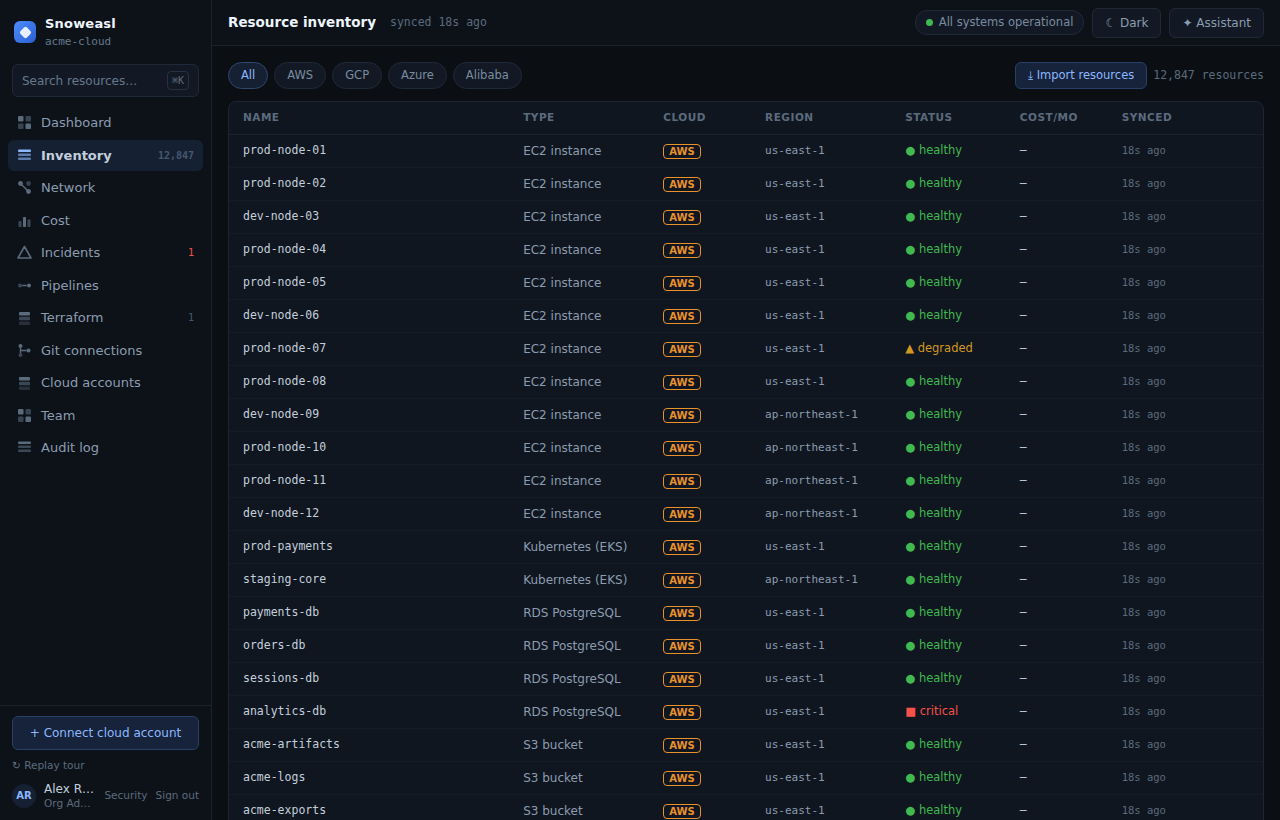
- See the topology
Open Network (
/network) to see your VPCs, subnets and links drawn on the map, each with a status glyph. Switch to the table view for a keyboard-friendly list.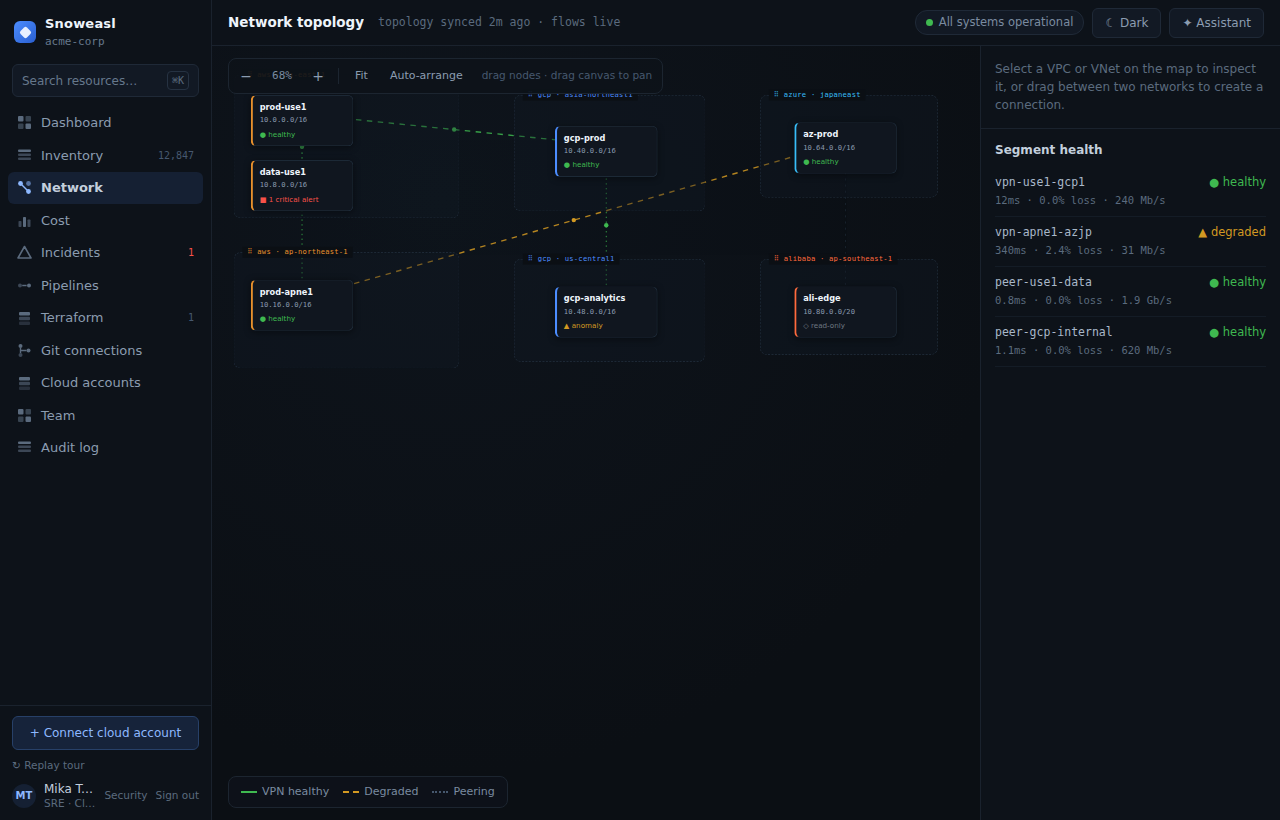
Cloud Control only read your account. If you disconnect later, it stops syncing and marks the discovered rows disconnected — it never modifies or deletes anything in AWS. Remove the IAM role to fully de-provision.
Next: give your team access in Manage your team and assign roles, or automate reads in Generate an API token and query resources.